Posts

WCP 12.2.1: Installation VIII (Oracle WebCenter Portal 12.2.1)
Image
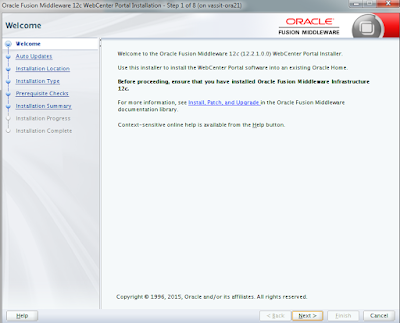
Now we are prepared to install WebCenter Portal. If you do not have the software download it from: http://www.oracle.com/technetwork/middleware/webcenter/portal/downloads/index.html First of all we are going to install the software in our ORACLE_HOME As usual unzip the installer and execute it! WebCenter Portal 12cR2 Software Installer Choose the /oracle/product (the ORACLE_HOME ) that we selected for every product! Choose the ORACLE_HOME Choose WebCenter Portal  WebCenter Portal Components Finish the Installation Wizard . Now create the required schemas using the RCU Execture [ORACLE_HOME]/oracle_common/bin/rcu Make sure that you are installing the WebCenter Portal schemas RCU installing WebCenter Portal Schemas Configure the Domain to have the WebCenter Portal Servers Time for configuring the Managed Servers and the weblogic_domain for WebCenter Portal . Select wisely (using the official documentation) the WebCenter Portal Components to...

WCP 12.2.1: Installation VI (Oracle HTTP Server 12.2.1)

Image
There are lot of differences between OHS 11g and OHS 12cR2 in the following: In OHS 12cR2 you will not find the opmnctl command In OHS 12cR2 Web Cache module as removed completily OHS 12cR2 is added as a Component (like a "server") in WebLogic Domain and can be started using Node Manager (such another server) Configuring OHS 12cR2 in a privileged port in UNIX is different from OHS 11g. Here we are going to focus in how to start / stop and configure the port 80 Download the installer from the following URL: http://www.oracle.com/technetwork/middleware/webtier/downloads/index.html Run the Universal Installer (now is .bin file do NOT use the java -jar command!) OHS 12cR2 Universal Installer Collocated option In this case, we are going to installed Collocated with our WebLogic in order to be managed through Enterpise Manager. Next -> Next -> Next... and we have it install it!. Installation finished It does not created an OHS instance... let...

WCP 12.2.1: Installation V (Oracle Fusion Middleware Infrastructure 12.2.1)

Image
In 11g versions the Oracle Fusion Middleware Infrastructure were not required to be installed. In addition, the RCU 11g were downloaded and installed. In 12c things changed and now you have to install in your WebLogic 12 Domain the Oracle Fusion Middleware Infrastructure in order to have ADF Framework, MDS Support and also the RCU!!!!! Download the installer from: http://www.oracle.com/technetwork/middleware/weblogic/downloads/wls-main-097127.html Unzip and run the Universal Installer . Select the ORACLE_HOME where the product will be installed Install with or without the examples (as you wish). Now execute the RCU to create the default prefix and base schemas! You can find the RCU in /oracle/product/oracle_common/bin If during your database connection are you facing the following error Error connecting database using orcl It is because we installed in Multitenant way! Use the pdborlc instead of the orcl :) Now let's the wizard create the DEV_STB table r...

WCP 12.2.1: Installation IV (Oracle WebLogic 12.2.1)

Image
Download the installer of WebLogic 12.2.1 from: http://www.oracle.com/technetwork/middleware/weblogic/downloads/wls-main-097127.html Unzip the installer in /oracle/software and execute java -jar -d64 fmw_12.2.1.0.0_wls.jar to initiate the Installation Wizard. Remember to set the /oracle/product as the Home for the products Home as recommended by Oracle in the official installation guides. WebLogic Oracle Home When finishing the installation then you can create the domain after it or just wait until WebCenter Software is installed. In our case we are going to create it because we will install and configure OHS 12c before of the WebCenter products. In this case we will create webcenter_domain in the recommended path of the official installation guide. /config folder webcenter_domain path Just select the following templates by the moment. Templates for the domain (we did not install webcenter software yet)  During the Wizard, just configure a machine call...

WCP 12.2.1: Installation III (Oracle Database 12.1.0.2)

Image
Oracle Linux respositories brings a pre-package which configures all the pre-requisites needed by the instalation of Oracle Databases. Note: This is the unique product installed in 12cR1 version. 12.2.1 is not yet released Remember that we already installed the pre-package of Oracle Database in the chapter: WCP 12.2.1: Installation I (O.S) If you did not installed then do it using: yum install oracle-rdbms-server-12cR1-preinstall Unzip and launch the installed downloaded from: http://www.oracle.com/technetwork/database/enterprise-edition/downloads/index-092322.html In this case we are installing a 12cR1 Standard Edition . Unzip the installer and execute the installation Wizard. Oracle Database Installation Wizard During the installation make sure that you use the same Oracle base as the future paths used by the other Fusion Middleware Products . By default PBD (Multitenant Arch) is selected, we will let it as selected as we can learn more about Multitenant Architectur...

WCP 12.2.1: Installation II (Oracle JDK 8)

Image
Finally Java JDK 8 is supported by WebLogic and it means happiness for all Java lovers!. Download the latest Oracle JDK 8 from: http://www.oracle.com/technetwork/java/javase/downloads/jdk8-downloads-2133151.html Unzip it in /oracle/java folder using the oracle user Java unziped in /oracle/java folder Register the new Java in your Oracle Linux 7 using the following commands (as root) Add your JDK as an alternative for the O.S: update-alternatives --install "/usr/bin/java" "java" "/oracle/java/jdk1.8.0_65/bin/java" 1 update-alternatives --install "/usr/bin/javac" "javac" "/oracle/java/jdk1.8.0_65/bin/javac" 1 update-alternatives --install "/usr/bin/javaws" "javaws" "/oracle/java/jdk1.8.0_65/bin/javaws" 1 Configure your JDK to be the default: update-alternatives --config java The new JDK configured as default Test it using java -version java -version output Tunning the...

WCP 12.2.1: Installation I (O.S)

Image
Installing the Operating System For development I usually install Oracle Linux in its latest version. In this case I installed Oracle Linux 7.1 obtained from http://edelivery.oracle.com/ Virtual Box with WebCenter! :) Note: Please, always check the compatibility of the software using the Certification Matrix Oracle Linux 7.1 Terminal You can find the Offical Installation guide in the following link Oracle Linux 7 Installation Guide During the installation Wizard I recommend to select the Minimum Installation option. Why? Because I do not like to install extra components which consume resources and are never used. If you need something install it using yum! Minimall Installation means less resources consumption!   After installing the operating system I recommend to update / install the following components Update the OL7 with the latest updates yum update Install wget (it is not installed by default) yum -y install wget Install locate command (I use a...